> ## Documentation Index
> Fetch the complete documentation index at: https://notes.chaicode.com/llms.txt
> Use this file to discover all available pages before exploring further.
# Branches in Git
> Learn about git branches
Branches are a way to work on different versions of a project at the same time. They allow you to create a separate line of development that can be worked on independently of the main branch. This can be useful when you want to make changes to a project without affecting the main branch or when you want to work on a new feature or bug fix.
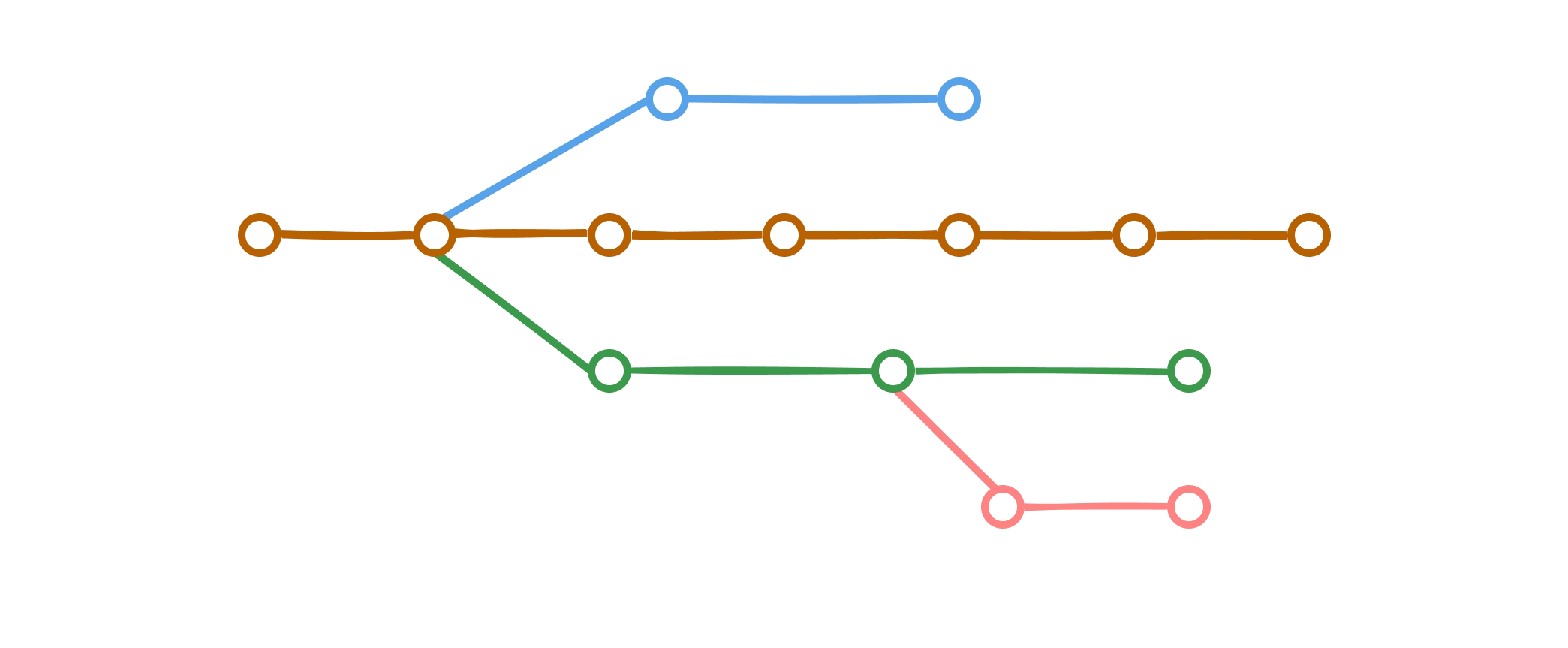 Some developers can work on Header, some can work on Footer, some can work on Content, and some can work on Layout. This is a good example of how branches can be used in git.
## HEAD in git
The HEAD is a pointer to the current branch that you are working on. It points to the latest commit in the current branch. When you create a new branch, it is automatically set as the HEAD of that branch.
the default branch used to be master, but it is now called main. There is nothing special about main, it is just a convention.
## Creating a new branch
To create a new branch, you can use the following command:
```bash theme={null}
git branch
git branch bug-fix
git switch bug-fix
git log
git switch main
git switch -c dark-mode
git checkout orange-mode
```
Some points to note:
* `git branch` - This command lists all the branches in the current repository.
* `git branch bug-fix` - This command creates a new branch called `bug-fix`.
* `git switch bug-fix` - This command switches to the `bug-fix` branch.
* `git log` - This command shows the commit history for the current branch.
* `git switch main` - This command switches to the `main` branch.
* `git switch -c dark-mode` - This command creates a new branch called `dark-mode`. the `-c` flag is used to create a new branch.
* `git checkout orange-mode` - This command switches to the `orange-mode` branch.
Commit before switching to a branch
Go to .git folder and checkout to the HEAD file
## Merging branches
* Merging is about bringing changes from one branch to another.
* In Git we have two types of merges :
* Fast-Forward Merges (If branches have not diverged)
* 3-Way Merges (if branches have diverged)
### Fast-forward merge
This one is easy as branch that you are trying to merge is usually ahead and there are no conflicts.
When you are done working on a branch, you can merge it back into the main branch. This is done using the following command:
```bash theme={null}
git checkout main
git merge bug-fix
```
Some developers can work on Header, some can work on Footer, some can work on Content, and some can work on Layout. This is a good example of how branches can be used in git.
## HEAD in git
The HEAD is a pointer to the current branch that you are working on. It points to the latest commit in the current branch. When you create a new branch, it is automatically set as the HEAD of that branch.
the default branch used to be master, but it is now called main. There is nothing special about main, it is just a convention.
## Creating a new branch
To create a new branch, you can use the following command:
```bash theme={null}
git branch
git branch bug-fix
git switch bug-fix
git log
git switch main
git switch -c dark-mode
git checkout orange-mode
```
Some points to note:
* `git branch` - This command lists all the branches in the current repository.
* `git branch bug-fix` - This command creates a new branch called `bug-fix`.
* `git switch bug-fix` - This command switches to the `bug-fix` branch.
* `git log` - This command shows the commit history for the current branch.
* `git switch main` - This command switches to the `main` branch.
* `git switch -c dark-mode` - This command creates a new branch called `dark-mode`. the `-c` flag is used to create a new branch.
* `git checkout orange-mode` - This command switches to the `orange-mode` branch.
Commit before switching to a branch
Go to .git folder and checkout to the HEAD file
## Merging branches
* Merging is about bringing changes from one branch to another.
* In Git we have two types of merges :
* Fast-Forward Merges (If branches have not diverged)
* 3-Way Merges (if branches have diverged)
### Fast-forward merge
This one is easy as branch that you are trying to merge is usually ahead and there are no conflicts.
When you are done working on a branch, you can merge it back into the main branch. This is done using the following command:
```bash theme={null}
git checkout main
git merge bug-fix
```
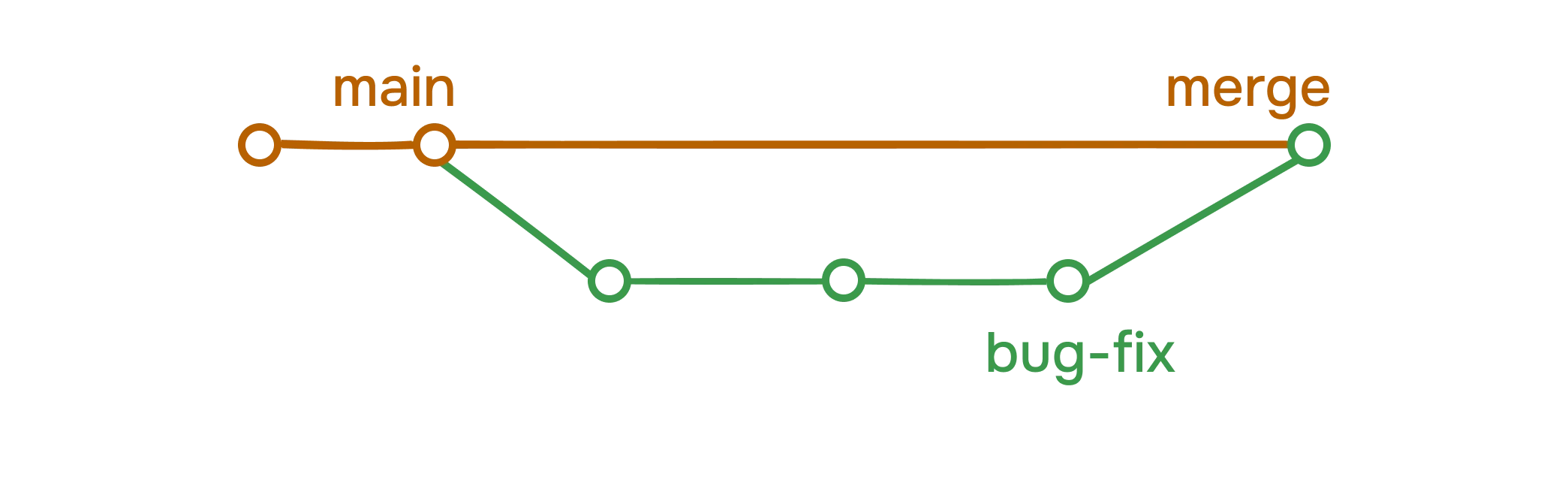 Some points to note:
* `git checkout main` - This command switches to the `main` branch.
* `git merge bug-fix` - This command merges the `bug-fix` branch into the `main` branch.
This is a fast-forward merge. It means that the commits in the `bug-fix` branch are directly merged into the `main` branch. This can be useful when you want to merge a branch that has already been pushed to the remote repository.
### 3 Way merge
Some points to note:
* `git checkout main` - This command switches to the `main` branch.
* `git merge bug-fix` - This command merges the `bug-fix` branch into the `main` branch.
This is a fast-forward merge. It means that the commits in the `bug-fix` branch are directly merged into the `main` branch. This can be useful when you want to merge a branch that has already been pushed to the remote repository.
### 3 Way merge
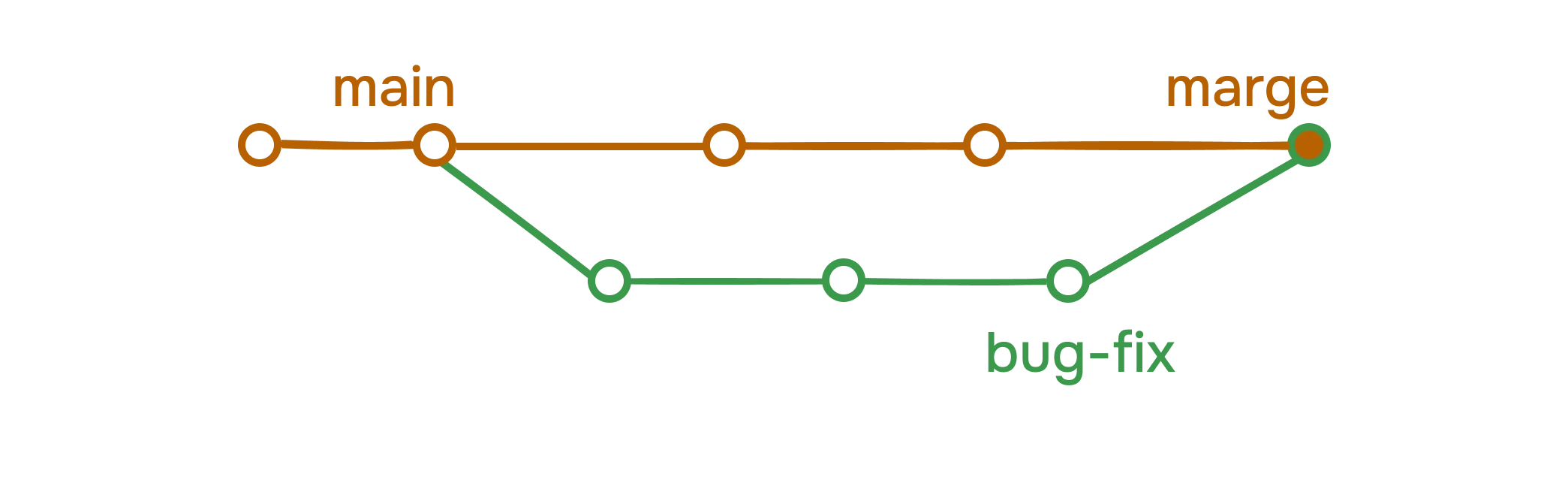 In this type of merge, the main branch has additional commits that are not present in the `bug-fix` branch. This is not a fast-forward merge. Here git looks at 3 different commits \[common ancestor of branches + tips of each branch] and combines the changes into one merge commit.
When you are done working on a branch, you can merge it back into the main branch. This is done using the following command:
```bash theme={null}
git checkout main
git merge bug-fix
```
If the command are same, what is the difference between fast-forward and not fast-forward merge?
The difference is resolving the conflicts. In a fast-forward merge, there are no conflicts. But in a not fast-forward merge, there are conflicts, and there are no shortcuts to resolve them.
You have to manually resolve the conflicts. Decide, what to keep and what to discard. VSCode has a built-in merge tool that can help you resolve the conflicts.
In this type of merge, the main branch has additional commits that are not present in the `bug-fix` branch. This is not a fast-forward merge. Here git looks at 3 different commits \[common ancestor of branches + tips of each branch] and combines the changes into one merge commit.
When you are done working on a branch, you can merge it back into the main branch. This is done using the following command:
```bash theme={null}
git checkout main
git merge bug-fix
```
If the command are same, what is the difference between fast-forward and not fast-forward merge?
The difference is resolving the conflicts. In a fast-forward merge, there are no conflicts. But in a not fast-forward merge, there are conflicts, and there are no shortcuts to resolve them.
You have to manually resolve the conflicts. Decide, what to keep and what to discard. VSCode has a built-in merge tool that can help you resolve the conflicts.
 ### Managing conflicts
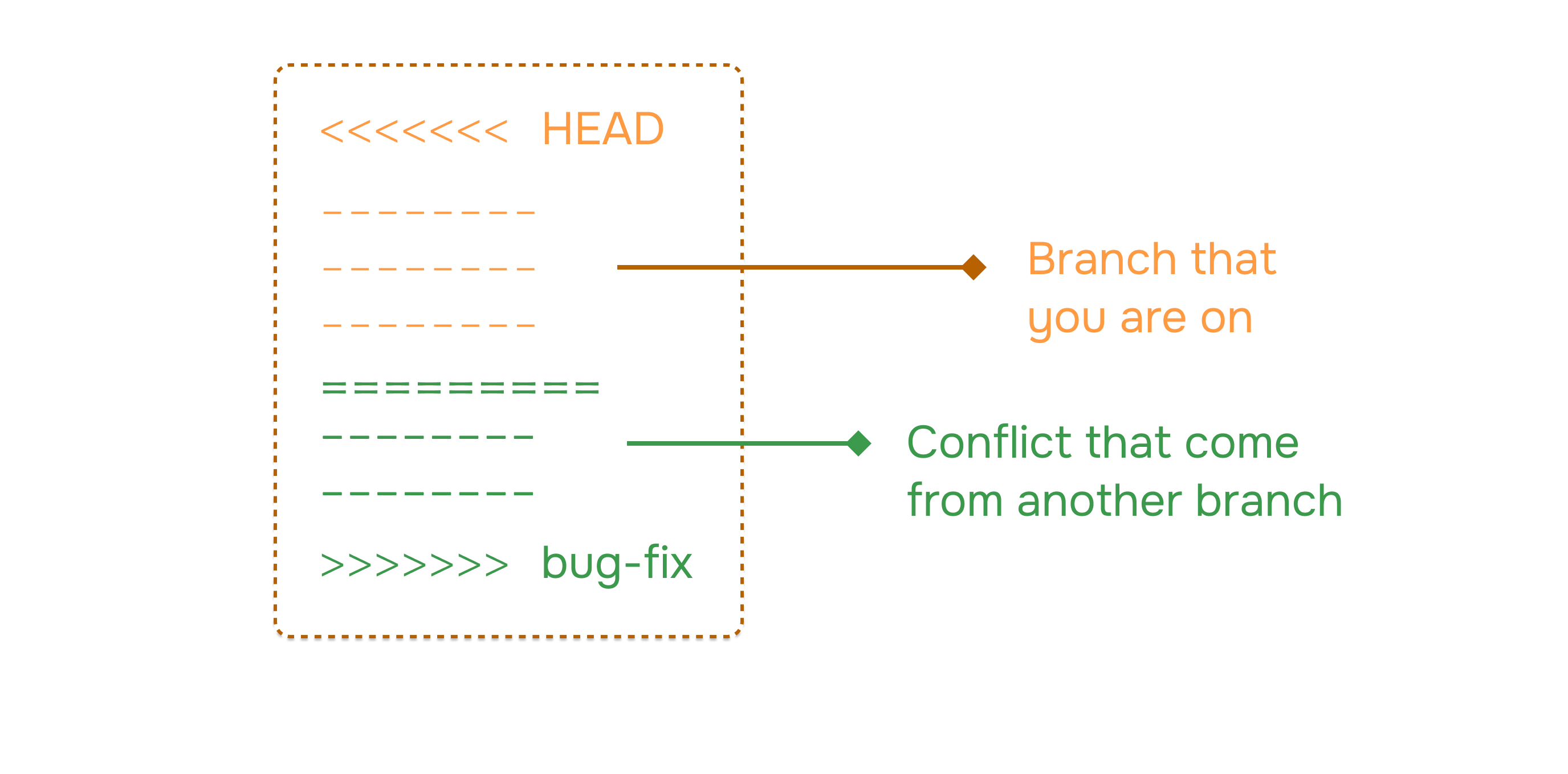
There is no magic button to resolve conflicts. You have to manually resolve the conflicts. Decide, what to keep and what to discard. VSCode has a built-in merge tool that can help you resolve the conflicts. I personally use VSCode merge tool. Github also has a merge tool that can help you resolve the conflicts but most of the time I handle them in VSCode and it gives me all the options to resolve the conflicts.
Overall it sounds scary to beginners but it is not, it's all about communication and understanding the code situation with your team members.
## Rename a branch
You can rename a branch using the following command:
```bash theme={null}
git branch -m
```
## Delete a branch
You can delete a branch using the following command:
```bash theme={null}
git branch -d
```
## Checkout a branch
You can checkout a branch using the following command:
```bash theme={null}
git checkout
```
Checkout a branch means that you are going to work on that branch. You can checkout any branch you want.
## List all branches
You can list all branches using the following command:
```bash theme={null}
git branch
```
List all branches means that you are going to see all the branches in your repository.
## Conclusion
In this section, we have learned about the different types of merges and how to resolve conflicts. We have also learned about the importance of branching and merging in Git and Github.
Learn advanced Git commands
### Managing conflicts
There is no magic button to resolve conflicts. You have to manually resolve the conflicts. Decide, what to keep and what to discard. VSCode has a built-in merge tool that can help you resolve the conflicts. I personally use VSCode merge tool. Github also has a merge tool that can help you resolve the conflicts but most of the time I handle them in VSCode and it gives me all the options to resolve the conflicts.
Overall it sounds scary to beginners but it is not, it's all about communication and understanding the code situation with your team members.
## Rename a branch
You can rename a branch using the following command:
```bash theme={null}
git branch -m
```
## Delete a branch
You can delete a branch using the following command:
```bash theme={null}
git branch -d
```
## Checkout a branch
You can checkout a branch using the following command:
```bash theme={null}
git checkout
```
Checkout a branch means that you are going to work on that branch. You can checkout any branch you want.
## List all branches
You can list all branches using the following command:
```bash theme={null}
git branch
```
List all branches means that you are going to see all the branches in your repository.
## Conclusion
In this section, we have learned about the different types of merges and how to resolve conflicts. We have also learned about the importance of branching and merging in Git and Github.
Learn advanced Git commands