
HEAD in git
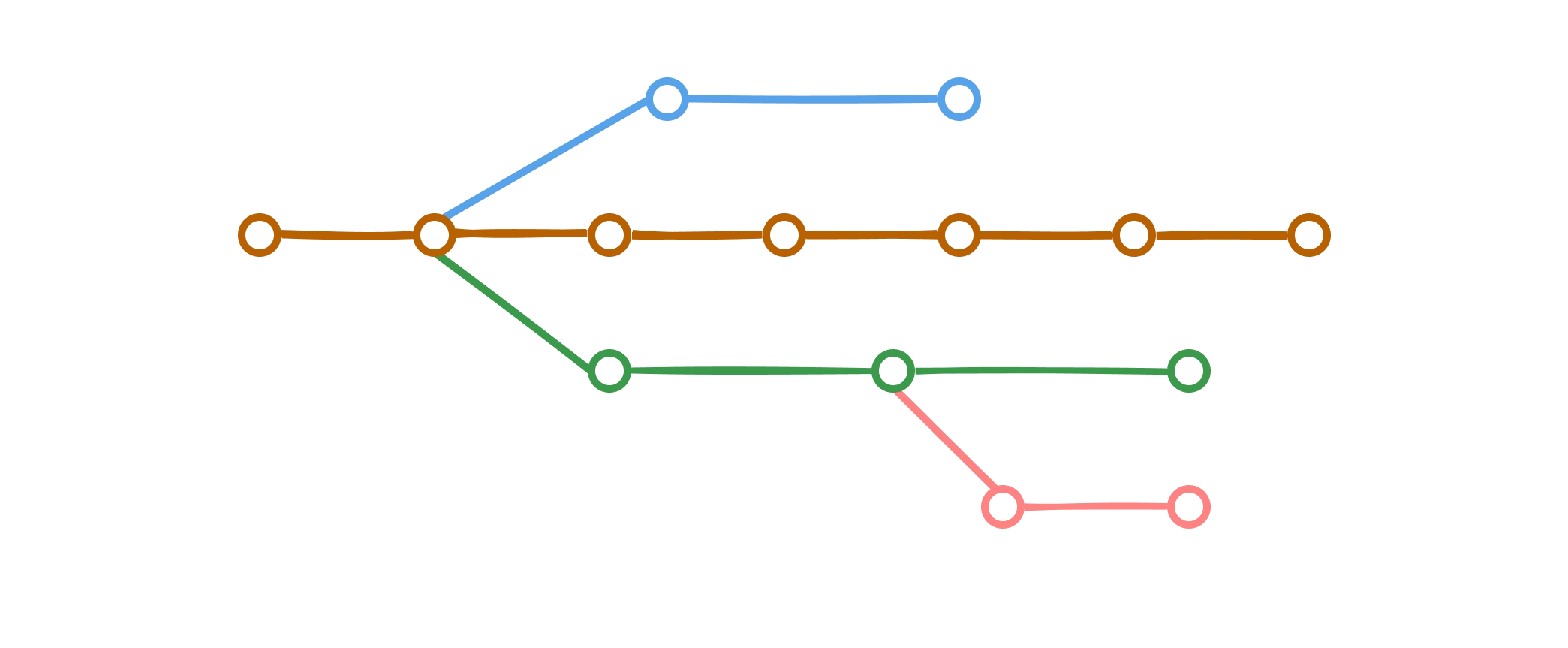
The HEAD is a pointer to the current branch that you are working on. It points to the latest commit in the current branch. When you create a new branch, it is automatically set as the HEAD of that branch.the default branch used to be master, but it is now called main. There is nothing special about main, it is just a convention.
Creating a new branch
To create a new branch, you can use the following command:git branch- This command lists all the branches in the current repository.git branch bug-fix- This command creates a new branch calledbug-fix.git switch bug-fix- This command switches to thebug-fixbranch.git log- This command shows the commit history for the current branch.git switch main- This command switches to themainbranch.git switch -c dark-mode- This command creates a new branch calleddark-mode. the-cflag is used to create a new branch.git checkout orange-mode- This command switches to theorange-modebranch.
Merging branches
- Merging is about bringing changes from one branch to another.
- In Git we have two types of merges :
- Fast-Forward Merges (If branches have not diverged)
- 3-Way Merges (if branches have diverged)
Fast-forward merge
This one is easy as branch that you are trying to merge is usually ahead and there are no conflicts. When you are done working on a branch, you can merge it back into the main branch. This is done using the following command: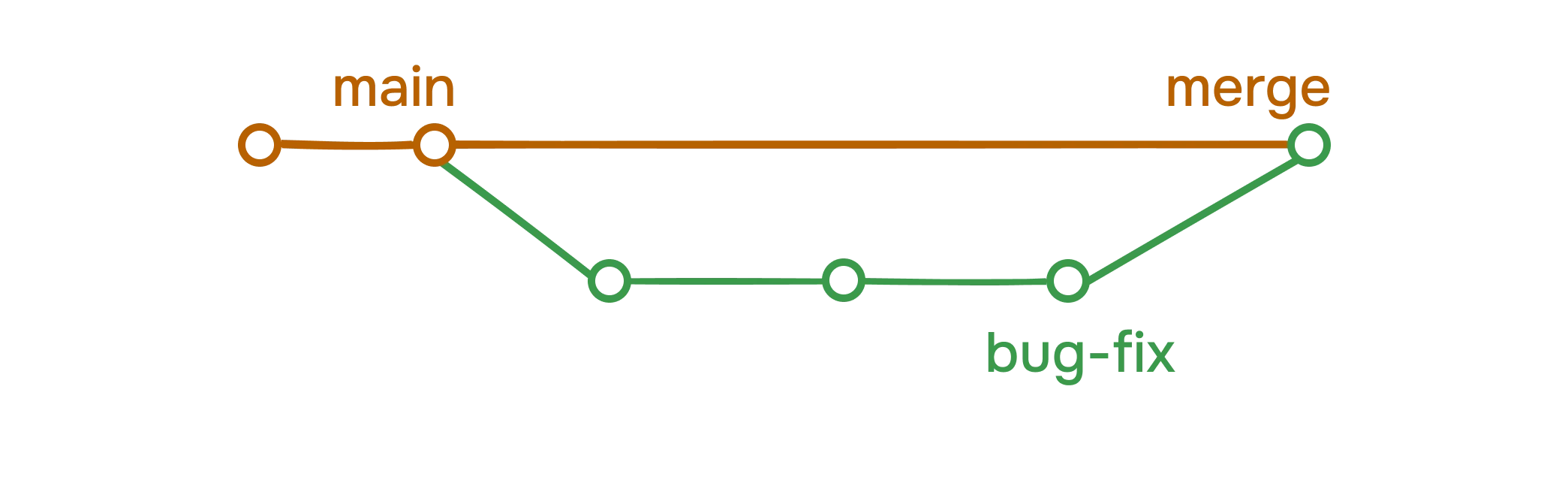
git checkout main- This command switches to themainbranch.git merge bug-fix- This command merges thebug-fixbranch into themainbranch.
bug-fix branch are directly merged into the main branch. This can be useful when you want to merge a branch that has already been pushed to the remote repository.
3 Way merge
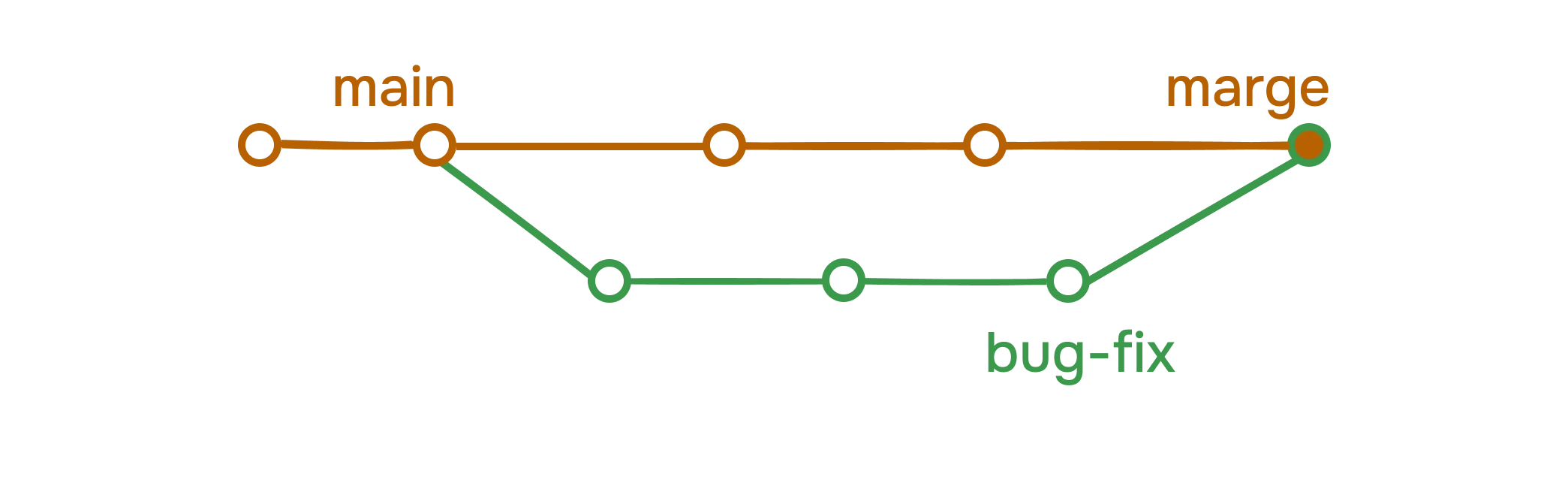
bug-fix branch. This is not a fast-forward merge. Here git looks at 3 different commits [common ancestor of branches + tips of each branch] and combines the changes into one merge commit.
When you are done working on a branch, you can merge it back into the main branch. This is done using the following command:
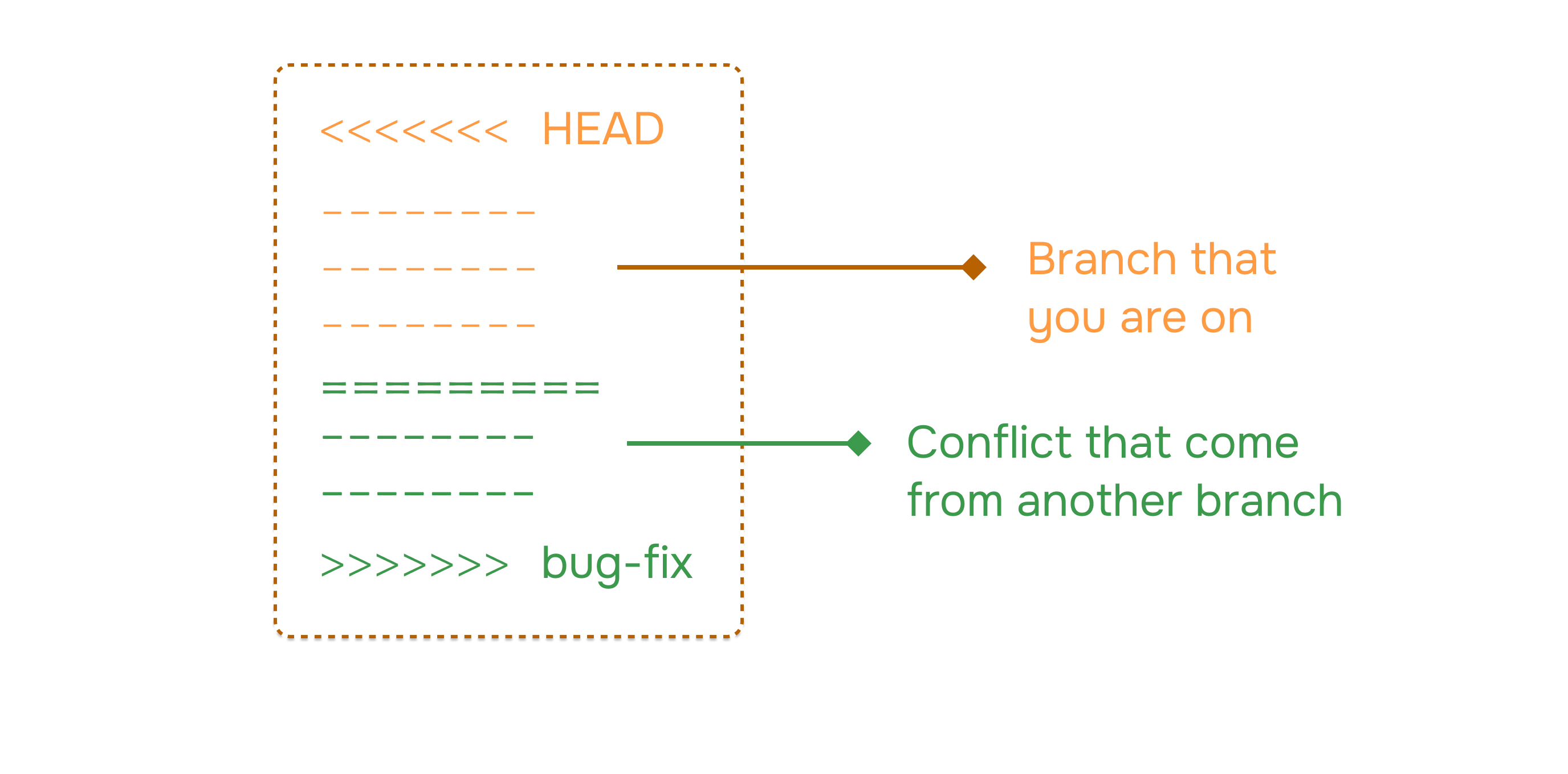
Managing conflicts
There is no magic button to resolve conflicts. You have to manually resolve the conflicts. Decide, what to keep and what to discard. VSCode has a built-in merge tool that can help you resolve the conflicts. I personally use VSCode merge tool. Github also has a merge tool that can help you resolve the conflicts but most of the time I handle them in VSCode and it gives me all the options to resolve the conflicts. Overall it sounds scary to beginners but it is not, it’s all about communication and understanding the code situation with your team members.Rename a branch
You can rename a branch using the following command:Delete a branch
You can delete a branch using the following command:Checkout a branch
You can checkout a branch using the following command:List all branches
You can list all branches using the following command:Conclusion
In this section, we have learned about the different types of merges and how to resolve conflicts. We have also learned about the importance of branching and merging in Git and Github.Next: Diff, Stash and Tags
Learn advanced Git commands